
Orders and Invoices
With the configuration setting “Automatically Import Orders” enabled we ensure that all the orders that are created on eBay are imported in Magento with a max delay of 15 minutes. That means that from this point on, if you browse at IWV// -> Manage Orders you will be able to see all the orders that have been downloaded and are processed in the system.
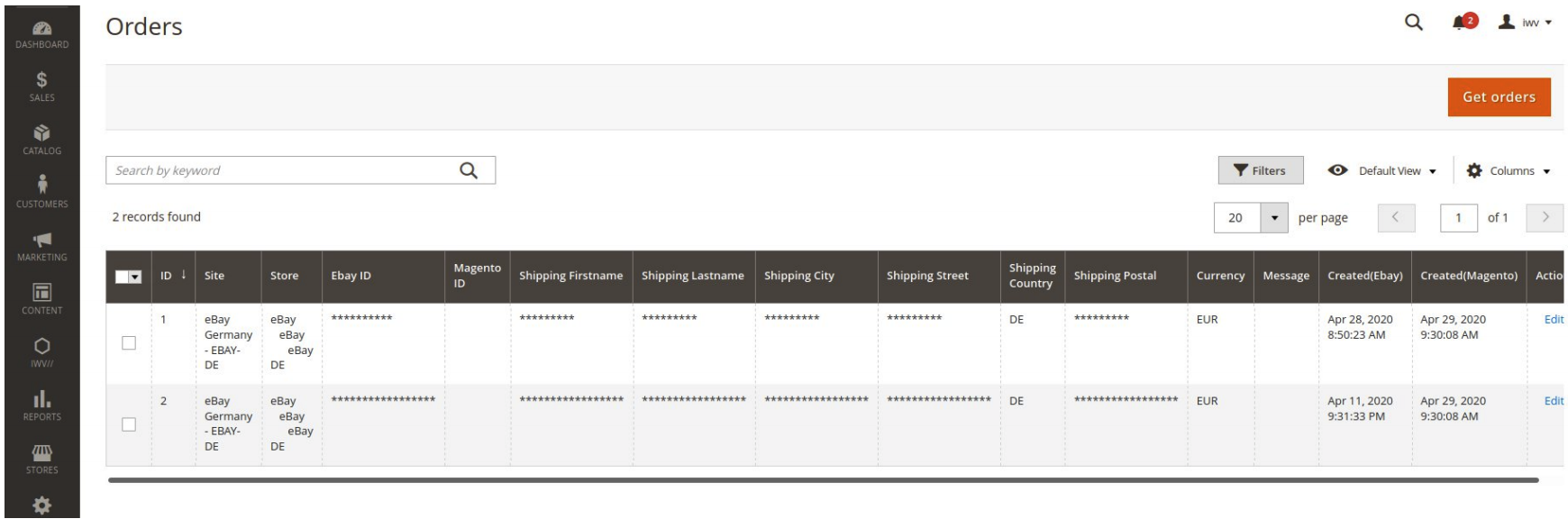
You can always click on the “Get Orders” button to initiate the process of download in IWV// -> Manage Orders. This will download and import all the orders that are not already imported in the last 24 hours.
Note: If an order is displayed in the grid and the column “Magento Order ID” is empty that means that the order is still processed and have not been created in the Magento store. A background job is responsible for processing all these orders that runs every 5 minutes on schedule.
If the order detaills are correct and there were no errors during the creation of the order, the column “Magento Order ID” should be populated with the corresponding ID field in Sales -> Orders.

You can further process the order from the default Magento pages by creating a shipment and an invoice ( in case you have the “Automatically Create Invoice“ configuration disabled, which you will have to manually create it and is not created for you ).
What happens if the order from eBay contains products that are not present and/or mapped in Magento?
The simple product that you created in section 2.4 of this guide will be used instead. It will display correctly the name, SKU and price in the order details and not the ones specified during the creation of the product.
With a shipment and an invoice created now it’s time to complete the order. A “Complete Sale” button is available at the top bar where certain conditions must be met for the process to run successfully.
- The order should be at the status that is specified in the configuration settings “Complete Sale Status”. By default after the shipment and the invoice are created it is in “Complete” state
- An invoice must be present for that order
- A tracking number must be present for that order
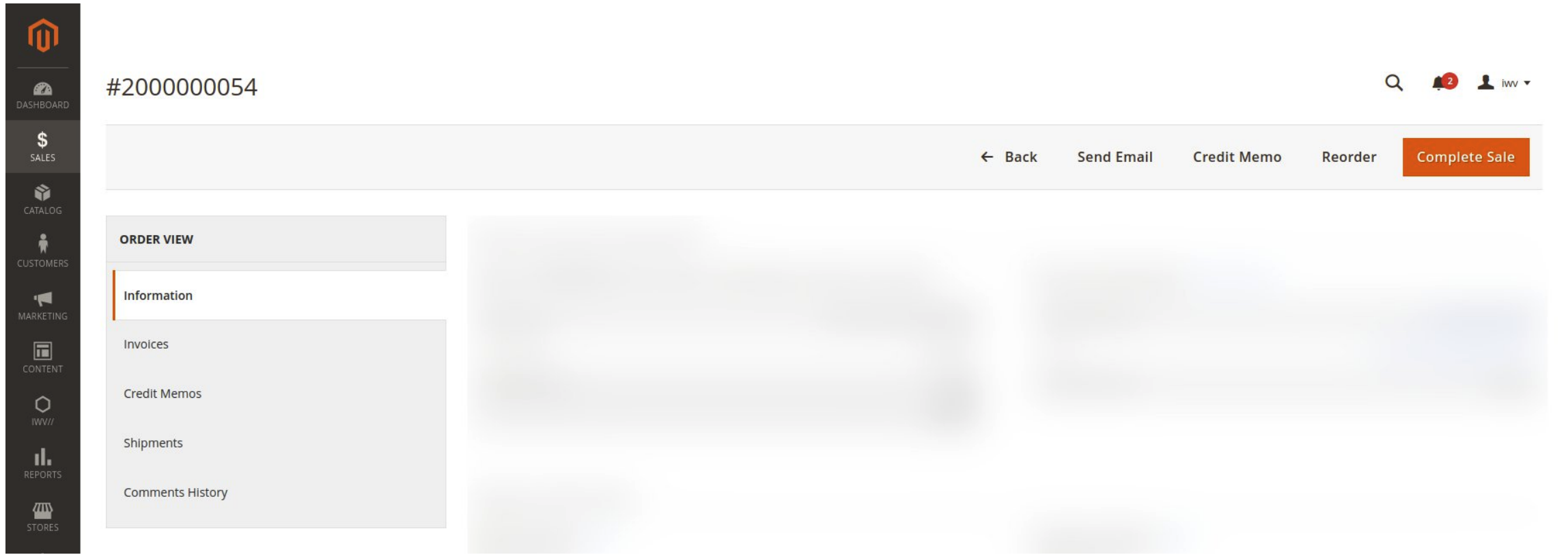
If all the above conditions are met, when you press the button “Complete Sale” a request will be sent to eBay to mark the order as completed and supply the tracking code specified in the order. In case of failure a respective error will be thrown that can be accessed and viewed from the IWV// -> View Logs page.
Stock synchronization
All the necessary steps have already been performed through this guide to ensure that your stock is setup and synchronized correctly. You can always disable the stock sychronization process by setting the configuration value for “Automatically Sync Stock” to “No” in IWV// -> Configuration. Whenever an order is created on Magento an update on the products associated with that order is issued and the stock quantity is decreased. We pick up that stock change and synchronize that change back to eBay.
Important to note that if the products in the order are not mapped through the mapping process in section 3.2 no stock synchronization for these products will be performed.
We assume that the master product is the one in the Magento store. That means that if any change happens on the stock quantity in Magento that absolute value will be synchronized across all the eBay stores that you have setup and override the value.
Ex: A new order from the Magento store comes in and it contains a product that is currently mapped on an eBay product. After the order is processed and the stock quantity has been updated, that stock quantity will override whatever stock quantity value exists on eBay so you are always sure that the stock quantity displayed in the Magento store, is the one on all your eBay stores as well.