
Importing and Mapping products
Head over at IWV// -> Manage Products and click at the button “Get Products” to start the download process. This process runs in the background asynchronously and will download all the listings available on eBay. It will take some time depending on the amount of listings that are available accordingly.
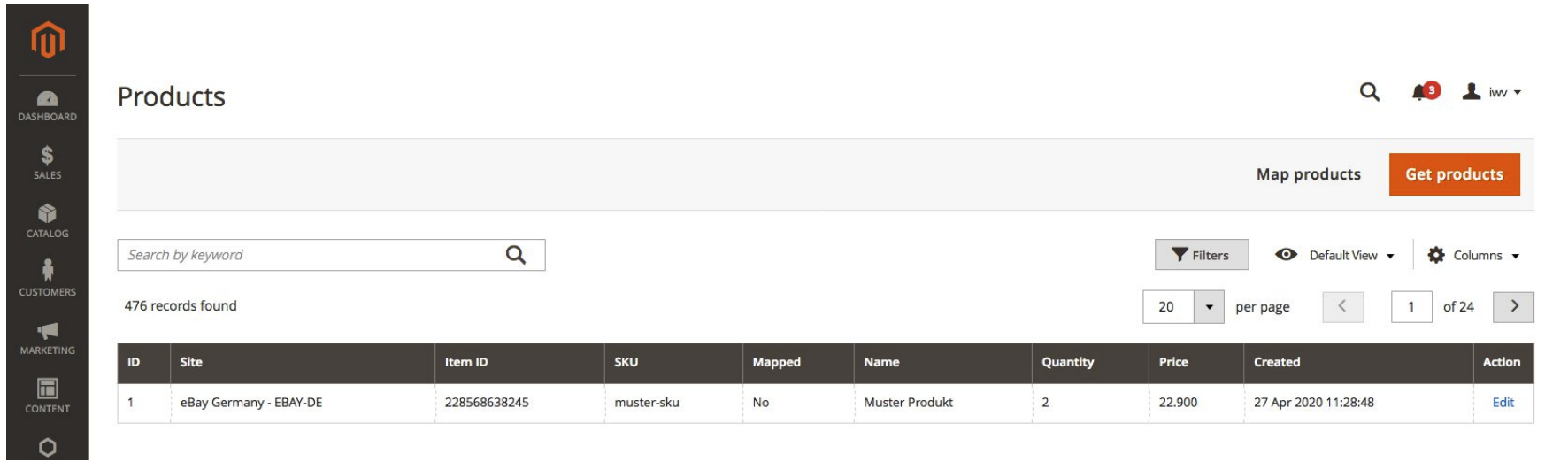
If an update occurs on the listings of eBay, the changes are not automatically imported on Magento 2. Ex. You create a new product listing on eBay. This process should then be re-run to import the new listing on Magento 2 and proceed with the next steps.
After the download process has finished, now it’s time to start the mapping process. Click on the “Map Product” to start the process in IWV// -> Manage Products page. This process is also an asychronous background process. The default mapping process is done with the SKU value of the products. That means that in order to provide the smoothest experience between the linking process, all your eBay products must have an SKU associated with them and the SKU values match 1-1 with the SKU of the Magento 2 products.
If the SKUs do not match but nonetheless a particular product should be linked, you can intervene the mapping process by manually supplying the SKU for that product.
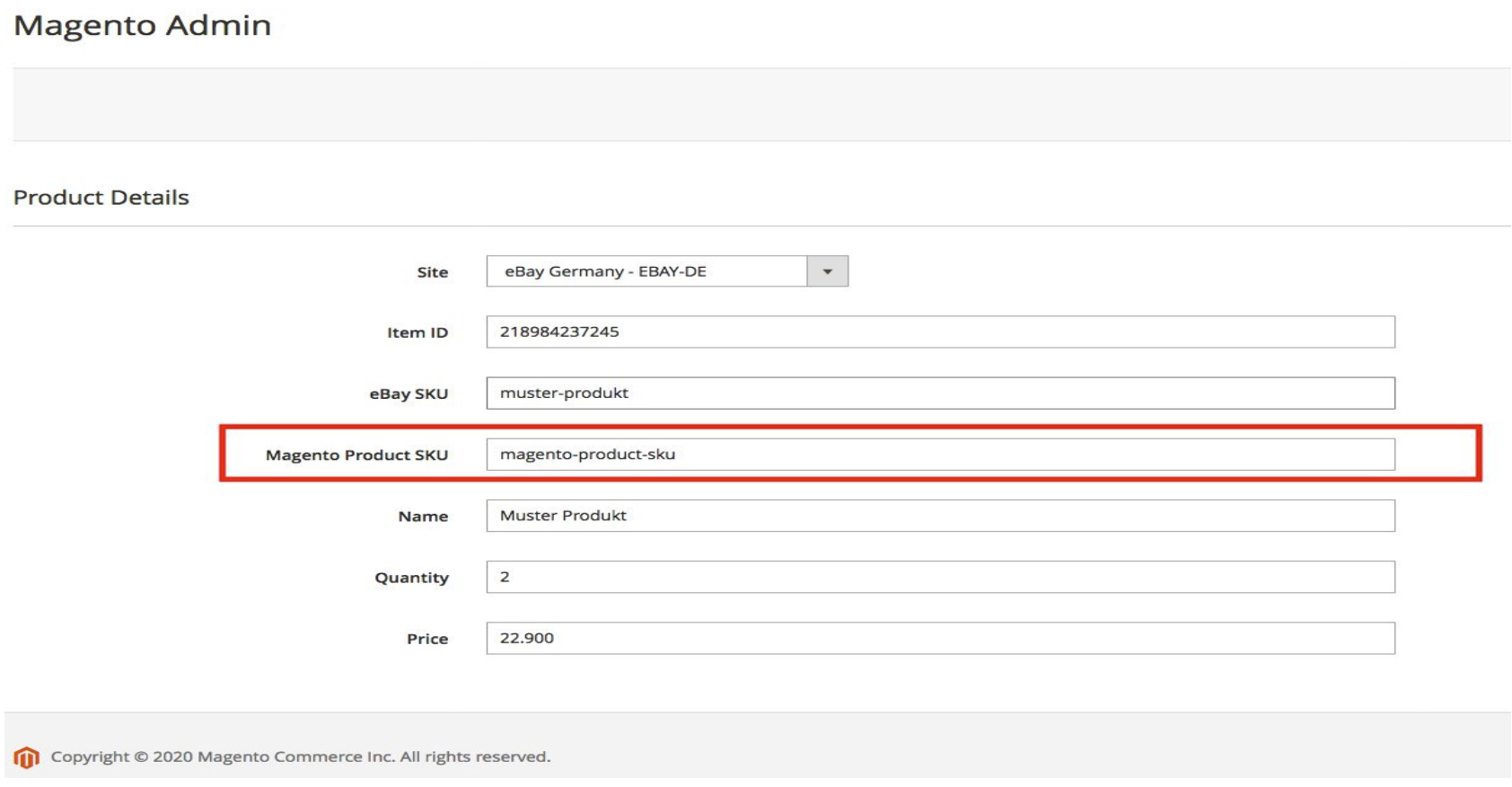
Note: For the best experience possible, all eBay products should have an SKU value and should be mapped to Magento 2 products. This is essential for the stock sychronization that comes later on.